
Sometimes apps can be too helpful. Apple’s Mail on the Mac likes to turn pasted website addresses into graphically rich previews, and sometimes that’s OK. But other times, the preview is confusing or takes up too much space. Or you may want to send a plain link so the recipient can see its text. There are three ways to avoid rich link previews:
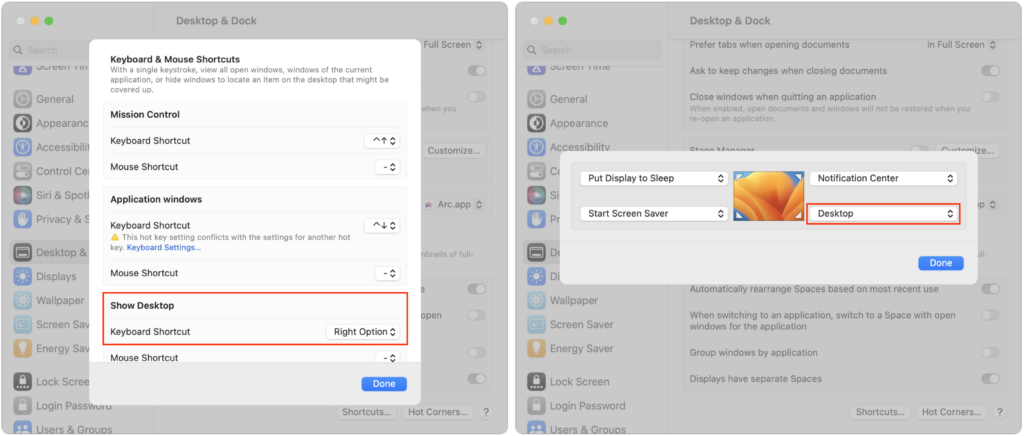
The Mac’s Desktop is a remarkably useful place. It’s a good spot for in-progress documents, screenshots, images dragged out of Web pages, and more. However, app windows tend to obscure the Desktop, making it harder to use. There are two quick ways you can temporarily hide windows, making it easy to access icons on the Desktop. In macOS 13 Ventura, in System Settings > Desktop & Dock, click the Shortcuts button at the bottom and assign a keyboard shortcut to Show Desktop (we like the Right Option key). Or click Hot Corners and choose Desktop for one of the corners. (In macOS 12 Monterey and earlier, look in System Preferences > Mission Control.) Then, press that keyboard shortcut or put your pointer in that corner to move your windows aside temporarily. When you’re done, press the key or move the pointer there again to put the windows back.
(Featured image based on an original by iStock.com/AmnajKhetsamtip)
Would you like to create a curated collection of your photos, letters, recipes, audio files, text messages and other documents that you can share with family or friends? If so, consider taking Mirja Heide’s four-week course at Edmonds College starting Thursday May 18th from 6-8 PM. The course costs $99. In this course, you will learn how to set up a permanent online home for preserving your memories. You will be able to start to build a collection of your most cherished items.
Bring your Windows PC or Mac laptop to class if you’re able.
Instructional handouts will be provided and take-home assignments given each week.
If your iPhone were to be stolen or suffer an unfortunate accident, would you lose all your precious photos? Those using iCloud Photos are probably shaking their heads smugly, thinking that all those baby and vacation photos are backed up securely in iCloud. iCloud Photos does indeed store a copy of all your photos, but you shouldn’t assume that everything in it is completely protected. Although it’s extremely unlikely that Apple’s systems would fail so that you’d lose anything, the contents of your iCloud account aren’t as safe as would be ideal.
It’s a question as old as the personal computer. When should you replace your current Mac with a new model that’s faster and more capable? If money were no object, the answer would be easy—whenever you feel like it. For the rest of us, and particularly for organizations with multiple Macs and limited budgets, the question is harder to answer. But answer it we must because most of us can’t do our jobs without a Mac.
No one intends to drop their iPhone in a pool or fall off a boat with their iPhone in a pocket. But accidents happen. Happily, Apple has designed the iPhone with significant levels of splash and water resistance, so brief exposure to rain or even a quick dunk might not cause any problems. If your iPhone does get wet, follow our advice below to dry it out before calling for more help.
This is troubling. Joanna Stern and Nicole Nguyen of the Wall Street Journal have published an article (paywalled) and accompanying video that describes attacks on hundreds of iPhone users in major cities throughout the United States. Some attacks involve drugging people in bars or even violence, but the most avoidable involve the thief or a confederate surreptitiously observing the iPhone user entering their passcode before snatching the iPhone and running.
Most of us rely on Messages every day to text with family, friends, and colleagues. Not surprisingly, we’ve fielded numerous questions surrounding common confusions with this popular app. We hope our answers here will help you use Messages more effectively and work around problems.
There are many reasons you might want to get rid of apps from your iPhone or iPad. To begin, touch and hold on a blank spot on a Home Screen to enter “jiggle mode.” Then tap the ⊝ icon for any app to see the question about whether to delete the app entirely or merely remove it from the Home Screen. Delete the app if you don’t want to use it anymore or need to reclaim the space it occupies. (You can download it from the App Store again.) Remove the app from the Home Screen if you want to reduce clutter, keep the app on your device, and don’t mind opening it from the App Library (swipe left past all the Home Screens) or from Search (swipe down from the middle of the screen).
(Featured image based on an original by iStock.com/Photosbypatrik)
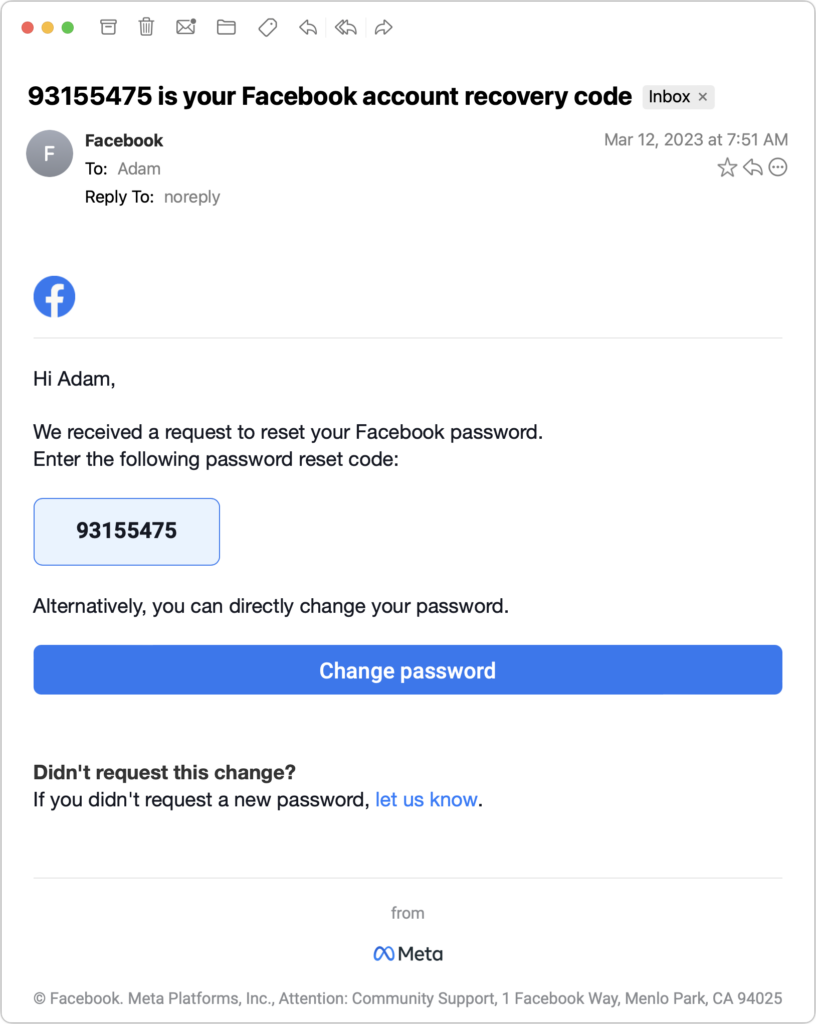
Phishing is becoming an ever more common way for people to get in trouble when using the Internet. A phishing attack is some communication, usually an email, that tries to lure you into revealing login credentials, financial information, or other confidential details.
With Wi-Fi security, it’s easy to fall into the “out of sight, out of mind” trap. Your Wi-Fi router probably lives in a corner or closet, and of course, Wi-Fi’s radio waves are invisible. But the ease of connecting your devices to your Wi-Fi network means it’s equally as easy for a hacker to connect to your network and eavesdrop on your traffic. Or rather, it’s easy unless you take advantage of the security options available in every Wi-Fi router.
Apple makes it easy to share contact cards on the iPhone or iPad—just scroll down in a contact and tap the Share Contact button. But what if you don’t want to share every piece of data on that card? To avoid oversharing in iOS 16 or iPadOS 16, tap the small and easily overlooked button named Filter Fields. Then deselect the items that you don’t want to share. If the card has a lot of data and you want to share only a few items, tap Deselect All Fields at the bottom of the sheet and select only what you want to share. Unfortunately, your selections aren’t remembered if you share the same card again later, so be sure to reset your selections each time you share.
Do you use Backblaze to backup your Mac? It’s a great way to create an off-site backup of your Mac’s data.
Backblaze typically automatically installs minor updates but it won’t install major upgrades on its own. Here are instructions on how to manually install a major upgrade of Backblaze on your Mac, such as upgrading from version 7.x to version 8.x or version 8.x to version 8.5. If Backblaze has failed to automatically install a minor update, these instructions still apply.
Apple has long provided a microphone button in the keyboard to invoke dictation on the iPhone and iPad. But, it wasn’t always easy to hit, and you had to switch back to the keyboard to fix the inevitable mistakes. (Apple’s dictation is a huge timesaver but far from perfect, particularly with homonyms and proper nouns.) With iOS 16 and iPadOS 16, Apple made the microphone button larger and repositioned it to make it easier to tap. More importantly, the keyboard remains available while dictation is active, enabling you to work with text manually during dictation. You can fix mistakes, reposition the insertion point, select and delete text, and so on. For instance, if dictation inserts the wrong word, double-tap the word to select it and speak the replacement. Or, if you want to add something, tap in the text to move the insertion point and start speaking again. Dictation can even add punctuation for you, but it’s a little haphazard at that, so you might want to disable that option in Settings > General > Keyboard.
Everyone—or at least everyone reading this article—knows how to use a Web browser. But just because you can click links, search for websites, and type URLs doesn’t mean that you’re surfing the Web as smoothly and effectively as you could. We all have sites that we visit regularly—a local newspaper, perhaps, or a social media service that’s the only place to connect with far-flung family members. Plus, the rise of Web apps like Google Docs means that we may spend hours every day in a Web browser at a particular site.
Here then are six ways that you can make it easier to use the same sites every day. This list is far from comprehensive, but we hope it gets you thinking about how you can spend less time typing URLs and searching for sites. We’ll focus on Safari here, but similar features are available in most Web browsers.
Earlier this year, some of my clients received an email from Google reminding them that they have Web & App Activity turned on. Those with a healthy dose of caution were concerned that it might be a phishing attack, but no, it’s legitimate. Their next questions were often, “Wait, what is Web & App Activity, and do I want it enabled?” Here are some answers.
On occasion, we all need to scan a document—an invoice, a recipe, instructions from a book—but far more people have an iPhone or iPad than a hardware scanner. Luckily, Apple has built a scanning capability into iOS, iPadOS, and macOS for some years now. The next time you’re faced with a piece of paper that you need in digital form, follow the instructions below.
When upgrading to a new version of macOS, I err on the side of caution, at least in my recommendations. I regularly tell people that you typically don’t want to be the first kid on your block to upgrade to a new version of the Mac operating system (macOS). Upgrading is easy, but if you upgrade too soon, the new macOS version could make key apps inoperable, create workflow interruptions, or cause other negative consequences. On the other hand, waiting too long can cause problems—it’s important to stay in sight of the cutting edge for security reasons and to take advantage of Apple’s advances. Upgrading is not an if question; it’s a when question. Since Apple recently released their second update to macOS 13 Ventura, feel free to upgrade, if you’d like as long as you have a current Time Machine backup and you know your applications are compatible. I discuss both of these topics below.
In early December, Apple made a surprise announcement: Advanced Data Protection for iCloud. It’s not as though iCloud’s standard data protection is problematic, but it hinges on one architectural decision that makes some iCloud data theoretically vulnerable: Apple holds the encryption keys necessary to decrypt iCloud data. Because Apple controls those encryption keys, an attacker or rogue Apple employee who could gain access to them could theoretically steal iCloud data. (There are many more safeguards; it’s not like there’s a big printout of keys anywhere.) Plus, since Apple has the technical capability to read that data, law enforcement agencies could legally compel Apple to hand it over.